Plan Projects with
Visual Gantt Charts
Vedratic is a powerful, browser-based Gantt chart editor that turns complex project timelines into clear, interactive visual plans. No sign-up required.
Everything You Need to Manage Projects
From initial planning to final delivery, Vedratic gives you a complete toolkit for creating professional Gantt charts and managing every aspect of your project timeline.
Interactive Gantt View
Drag-and-drop task management with dual resolution modes — zoom into daily tasks or get a high-level monthly overview. Every change updates your timeline in real time.
Deliverables Tracking
Define key deliverables and link them to their component tasks. Track which tasks feed into each deliverable so you always know if a deadline is at risk.
Resource Management
Assign team members, define roles, and set dedication percentages per task. Identify bottlenecks before they happen by seeing who is overloaded and when.
Task Dependencies
Link tasks with dependencies so your Gantt chart accurately reflects the real workflow. Change one task and see how it cascades through the entire project timeline.
Buffer Management
Add configurable buffer days to every task type — design, development, testing, review. Set global defaults or fine-tune each task individually to protect against delays.
Flexible Export
Export your charts as Mermaid .mmd files for GitHub and Notion, .json for backup and sharing, or rendered .svg images for presentations and documentation.
Getting Started with Vedratic
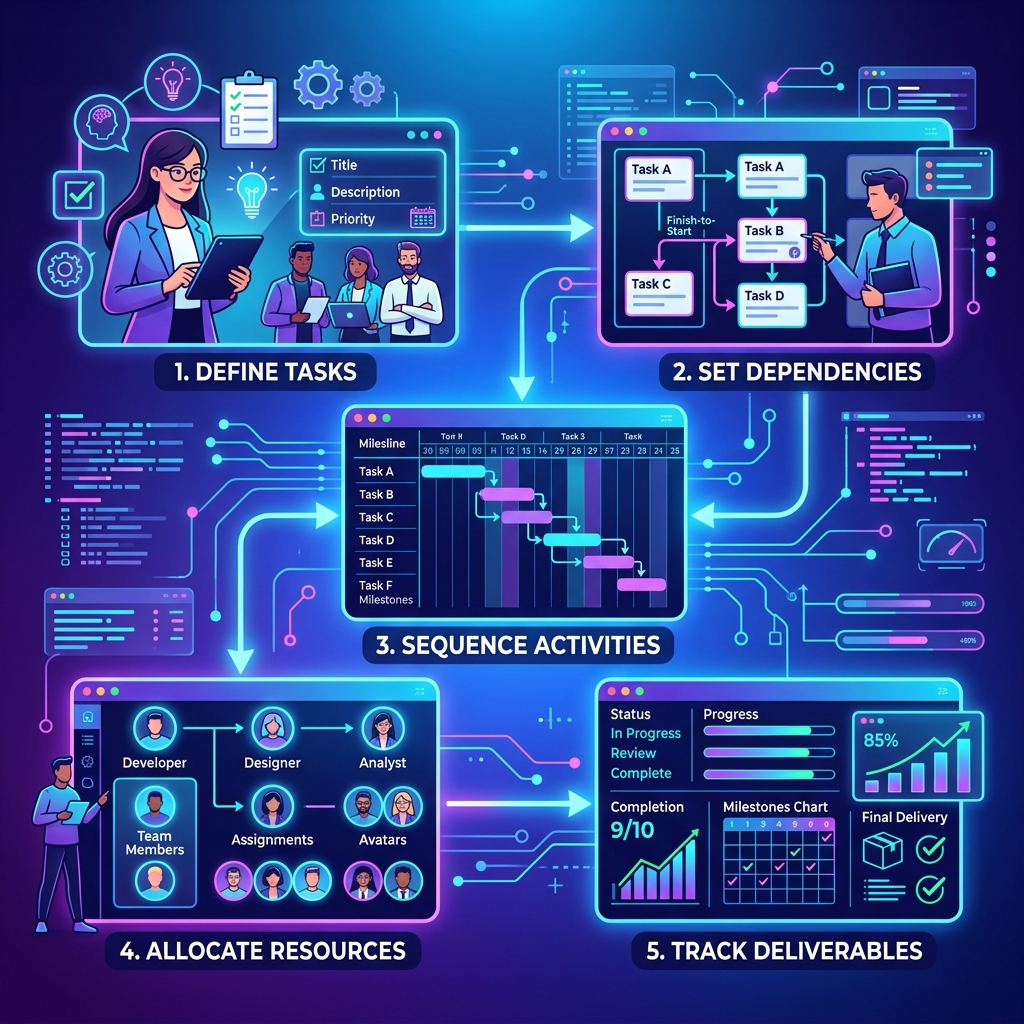
Follow these steps to go from a blank canvas to a fully structured project timeline. The editor is designed to be intuitive, so you can start planning in under a minute.
Create Your Project
Click the "New Project" button in the left sidebar to start fresh, or work with the default "New Software Project" template that comes pre-loaded with sample phases and tasks. Give your project a title and set the start date — this anchor date determines how every task lines up on the timeline.
Define Phases & Tasks
Break your project into logical phases like "Foundation," "Development," and "Launch." Inside each phase, add tasks by clicking the "+" button. For each task, configure the effort (estimated work days), timespan (calendar days allocated), buffer (extra safety margin), and validation complexity (a multiplier for back-and-forth review cycles). Choose from task types including Design, Development, Testing, Review, Deployment, and Documentation.
Set Dependencies
Connect tasks by specifying which tasks must finish before others can begin. When you select a task in the Interactive view, you can link it to its predecessors. The Gantt chart will automatically calculate start dates based on these dependencies, so if "Architecture Design" must follow "Project Setup," the timeline reflects that order without manual date entry.
Track Deliverables
Switch to the Deliverables view to define the key outputs your project must produce — architecture documents, prototypes, final releases, etc. Then link tasks to their corresponding deliverables. This gives you a deliverable-centric view of progress, perfect for reporting to stakeholders who care about outcomes, not task lists.
Manage Resources
Open the Resources view to add team members and assign roles (Lead Developer, Designer, QA Engineer, etc.). Then, on each task, specify which roles are required and what percentage of their time is dedicated to that task. This helps you identify overallocation and plan hiring or reallocation early.
Preview & Export
Toggle to the Mermaid view to see your Gantt chart rendered as a beautiful, standards-compliant diagram. From here, download the raw .mmd code to embed in GitHub READMEs, Notion pages, or any Markdown-compatible platform. Export .svg images for slide decks or export the full project as .json for backup and cross-team sharing.
Tips for Better Project Plans
Whether you're managing a small team or coordinating a large-scale software release, these practical strategies will help you create more accurate and resilient project timelines.
🧩 Break Tasks Down Small
A common mistake is creating huge, multi-week tasks. Break every task into pieces that take no more than 3–5 days of effort. Smaller tasks are easier to estimate, track, and reassign if someone gets blocked. They also make your Gantt chart more granular and useful.
🛡️ Use Buffers Strategically
Don't add buffers to every task uniformly. Instead, use the Buffer Settings panel to assign larger buffers to high-risk task types (like Design or Testing, which often involve unpredictable review cycles) and smaller buffers to routine tasks (like Documentation).
🔗 Model Real Dependencies
Only add dependencies between tasks that truly block each other. Over-linking creates an overly sequential plan that hides parallelism. If your designer and developer can work simultaneously, don't chain their tasks — let them overlap on the timeline.
🎯 Define Deliverables First
Before adding a single task, define your deliverables. Working backwards from outputs to tasks forces you to think about what actually needs to be produced, rather than just listing activities. This results in a leaner, more focused project plan.
📈 Use Validation Complexity
The validation complexity multiplier is unique to Vedratic and accounts for the real-world back-and-forth that slows down tasks. Set it to 0.5 for tasks that typically need one round of revisions, 1.0 for tasks needing extensive review, and 2.0 for client-facing deliverables with multiple stakeholders.
📦 Export & Iterate Often
Export your project as JSON regularly to create version history. Before a sprint planning meeting, export an SVG snapshot of the current state. After the meeting, import the JSON, make updates, and export again. This creates a useful audit trail of how your plan evolved.
About Vedratic
Vedratic was born out of frustration with existing project management tools. Most Gantt chart software is either incredibly expensive, locked behind enterprise paywalls, or so bloated with features that creating a simple timeline feels like configuring a spaceship. We wanted something different.
Vedratic is a lightweight, browser-based Gantt chart editor built with modern web technologies — React 19, TypeScript, Vite, and Mermaid.js. It runs entirely in your browser with no backend, no accounts, and no data collection. Your projects are stored locally in your browser's storage, giving you complete privacy and zero vendor lock-in.
The application was designed by developers, for developers and project managers who need a fast, visual way to plan work. Whether you're estimating a two-week sprint or mapping out a six-month product roadmap, Vedratic scales to your needs without getting in the way.
Built with ❤️ using React 19, TypeScript, Vite, Tailwind CSS, and Mermaid.js.
Frequently Asked Questions
Everything you need to know about using Vedratic for your project management needs.
Yes, Vedratic is completely free to use. There are no premium tiers, no feature locks, and no trial periods. Every feature — from interactive Gantt editing to SVG export — is available to all users at no cost. The project is open source and community-driven.
All your project data is stored locally in your browser's Local Storage. Nothing is sent to any server. This means your data is completely private, but it also means you should export your projects as JSON files regularly to create backups. If you clear your browser data, your projects will be deleted.
Absolutely! Click the import button and select a .mmd file containing valid Mermaid Gantt syntax. Vedratic will parse the file and recreate the project structure, including sections, tasks, dependencies, and statuses. You can also import .json project files that were previously exported from Vedratic.
Vedratic works on all modern browsers including Chrome, Firefox, Safari, and Edge. For the best experience, we recommend using the latest version of Chrome or Firefox. The application is fully responsive and works on tablets, though desktop is recommended for the best editing experience.
Currently, Vedratic does not support real-time collaboration. However, you can easily share projects by exporting them as JSON files and sending them to teammates, who can import them into their own instance. We are exploring real-time collaboration features for future releases.
Validation Complexity is a unique Vedratic feature that adds a multiplier to account for review and revision cycles. A value of 0 means no extra time for revisions. A value of 0.5 adds 50% more time for one round of feedback. A value of 2.0 triples the effective task duration to account for extensive stakeholder review. This helps you create more realistic timelines that account for the back-and-forth that inevitably happens in real projects.
Switch to the Mermaid view and export your chart as a .mmd file. On GitHub, you can include Mermaid syntax directly in your README by wrapping it in a ```mermaid code block. On Notion, paste the Mermaid code into a Code block and set the language to Mermaid. Both platforms will render the chart natively.